
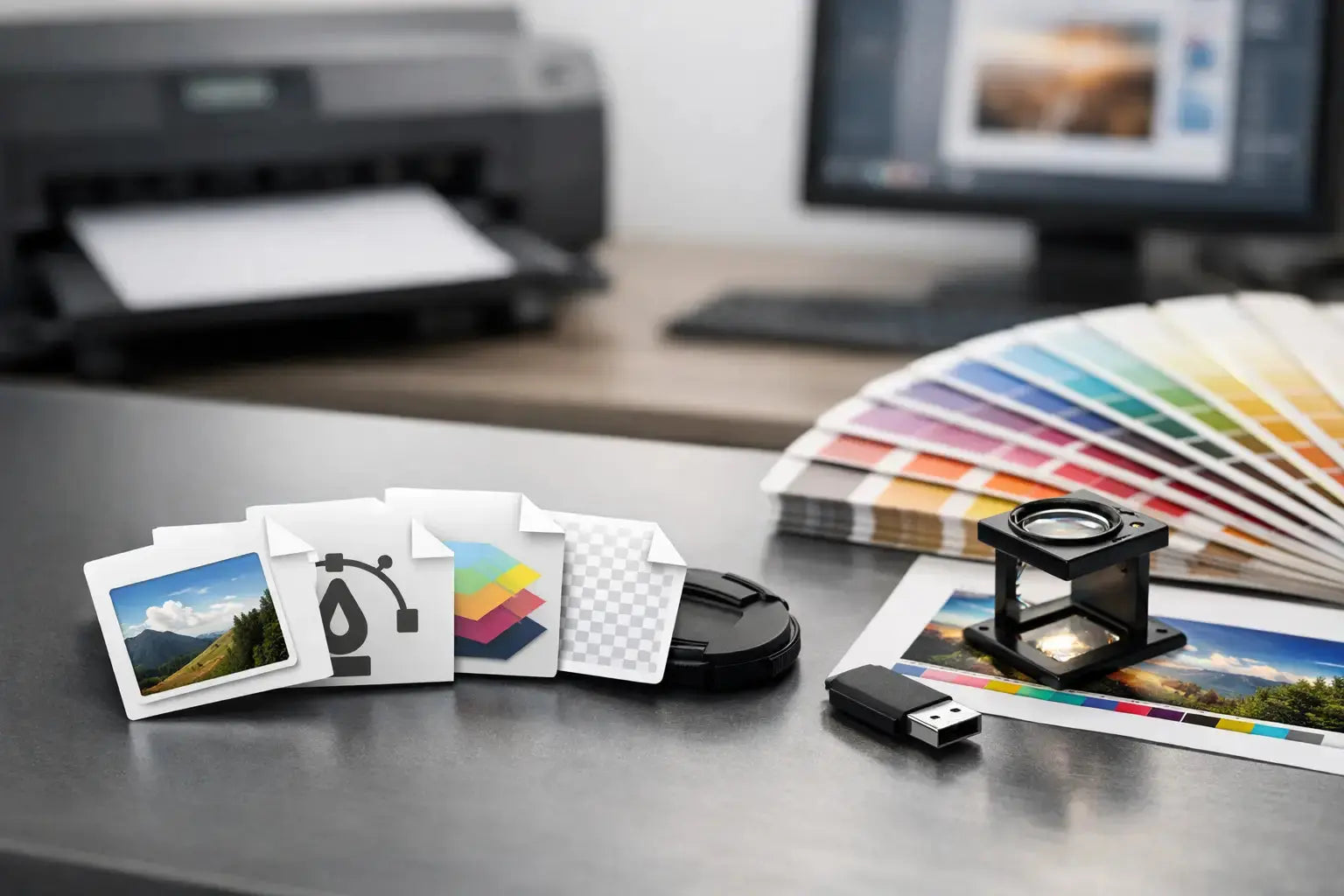
A print job can slow down before production even starts if the artwork file is not set up correctly. One of the most common questions buyers ask is what file formats are accepted for printing, and the short answer is this: it depends on the product, the artwork, and how much editing needs to happen before press.
For most commercial printing, PDF is the safest choice. But that does not mean every PDF is press-ready, and it does not mean other formats like AI, EPS, PSD, PNG, or JPEG are never acceptable. If you are ordering business cards, packaging, stickers, labels, signage, exhibition graphics, uniforms, or branded materials for an event, the right file format helps avoid delays, keeps colors and layout under control, and reduces back-and-forth during approval.
What file formats are accepted for printing in most cases?
Most professional printers accept PDF, AI, EPS, PSD, JPEG, PNG, and sometimes TIFF. The difference is not simply whether the file opens. The real question is whether the file gives the production team enough control to print it accurately.
A press-ready PDF is usually the preferred format because it can preserve fonts, vector elements, image quality, bleed, and page dimensions in one file. For logos, line art, and designs that may need resizing, vector formats such as AI and EPS are highly useful. For image-heavy artwork, PSD or TIFF may be acceptable if the file is built to the correct size and resolution. JPEG and PNG can work for certain applications, but they are more limited and often cause issues when used for large-format or high-detail print jobs.
That is why accepted does not always mean recommended. A printer may be able to use a JPEG, but if the file is compressed, low resolution, or missing bleed, the result may not match the original intent.
Why PDF is usually the best file for print
If your team needs one format that works across the widest range of printed products, use PDF. It is the standard for a reason. A properly exported PDF keeps text sharp, maintains vector artwork, and travels more reliably between design software and print production systems.
PDF is especially useful for brochures, flyers, business cards, menus, labels, packaging layouts, presentation folders, and other structured designs with exact dimensions. It also helps when multiple pages are involved or when artwork includes both images and editable-looking graphic elements.
The key point is that not every PDF is automatically print-ready. A PDF still needs correct trim size, bleed, margins, color mode, and image resolution. If those settings are wrong, the format alone will not fix the file.
When AI and EPS make more sense
Adobe Illustrator files, saved as AI or EPS, are often preferred for logos, branding assets, signage graphics, cut lines, and artwork that may need resizing across multiple products. Because these are vector formats, they stay sharp whether used on a small sticker or a large display wall.
This matters for businesses managing brand consistency. A logo supplied as a JPEG may look acceptable on screen but can lose edge quality when enlarged. A vector file gives the printer cleaner output and more flexibility for production.
AI files are often better when the artwork may need prepress adjustments. EPS is still commonly accepted, especially for simpler vector assets, though AI is generally easier for modern workflows if the production team uses Adobe-based systems.
Are JPEG and PNG accepted for printing?
Yes, often they are, but with conditions.
JPEG files are common because they are easy to export and share. They can work for basic print applications if they are high resolution and already built to final size. For photo-based graphics, posters, simple promotional pieces, or reference artwork, a good JPEG may be usable. The problem is compression. JPEGs lose data when saved, and repeated exports can reduce quality further.
PNG files are better than JPEGs in some situations because they support transparent backgrounds. That can help with logo placement or artwork previews. However, PNG is still a raster format, so it does not replace a proper vector logo for professional branding applications.
For small office labels or simple internal graphics, a PNG might be acceptable. For premium printed materials, storefront branding, or exhibition displays, it is usually better to provide a PDF or vector file instead.
What about PSD and TIFF?
PSD and TIFF are both useful for image-based production files, especially when high-quality photography is part of the design.
PSD files can preserve layers, masks, and detailed image edits. They are often helpful when artwork includes retouching or composite visuals. TIFF files are also strong for high-resolution image output and are widely respected in print workflows because they hold image data well without the aggressive compression seen in JPEGs.
That said, these formats are typically more relevant for production teams and designers than for procurement teams sending standard branded artwork. If your design includes text, logos, dielines, or multiple layout elements, PDF is usually the better handoff format.
What file formats are accepted for printing different products?
The acceptable format often changes based on the product category.
For business stationery, brochures, menus, and packaging, press-ready PDF is usually the best option. For stickers and labels, PDF or AI works well, especially if cut lines are involved. For signage, roll-up banners, backdrops, window graphics, and exhibition panels, PDF, AI, EPS, or high-resolution PSD may be accepted depending on whether the artwork is vector-based or photo-heavy.
For uniforms and promotional products, the artwork is often logo-led, so AI, EPS, or PDF is preferred. These formats help preserve sharp edges and allow better output across embroidery, screen printing, heat transfer, or other branding methods.
This is where practical planning matters. The same company logo may need one format for a catalog, another for a gift box, and another for a large exhibition wall. Sending the original vector brand file along with any placed design files usually speeds things up.
The file setup matters as much as the format
A perfect format with poor setup can still create production problems. Before sending artwork, check the basics.
Your file should match the final print size or the agreed scale. Images should be high enough resolution for the product. Colors should be prepared in CMYK when required, not only RGB. Bleed should be included where trimming is involved, and important text should sit safely inside the margins.
Fonts should either be embedded in the PDF or converted to outlines when appropriate. Linked images should be included if you are sending native design files. If white ink, spot colors, varnish, foil, or cut paths are part of the job, those should be clearly separated and labeled.
These details matter because production accuracy depends on more than whether a file extension looks familiar.
Common reasons artwork gets rejected or revised
Most artwork issues come from a few repeat problems. The file may be too low resolution, the dimensions may be incorrect, or the customer may submit a screenshot instead of the source artwork. Another common issue is sending a flattened image when the printer needs editable vector elements for cleaner output.
There can also be confusion between files meant for digital use and files meant for print. A web-ready PNG or social media JPEG is not always suitable for printed packaging, signage, or branded merchandise. Screen graphics are built for pixels and display. Print files need physical dimensions, production tolerances, and output accuracy.
When timelines are tight, these corrections can hold up approvals. That is why it helps to confirm file requirements before the design team exports the final version.
How to send files to a printer with fewer delays
The most efficient approach is to send a press-ready PDF along with source files when available. If your brand team has AI logo files, include those too. Name files clearly, keep versions organized, and confirm product size before final export.
If the job includes multiple items, such as a full event package with signage, stickers, handouts, uniforms, and giveaways, separate the files by product type. This reduces confusion and makes prepress review faster. It also helps your printer flag any technical issue early, before production time is booked.
For businesses ordering in volume or across multiple branches, keeping an approved artwork library is a smart move. It saves time on repeat orders and keeps branding consistent across departments.
If you are preparing artwork for commercial print and want faster approvals, clearer production, and fewer revisions, the best step is simple: ask for the artwork specifications before your team exports the files. If you need support with print-ready setup across business materials, packaging, signage, or promotional items, Printava can help you review the right format and get the job moving. Get a quote today at https://printava.ae/.